

GoodMocups Link Saver is the easiest way to organize your mockups and save them in a Chrome extension. On our website, there are more than 7500+ mockups, and sometimes it is overwhelming to find the best one. We developed this Chrome extension so you can save your favorite mockup(s) ‘ links and revisit them whenever you need. By using this extension, you can also visit for new mockups. So let’s learn how to use it effectively.
First of all, go to the Google Chrome extension web store and download the GoodMockups Link Saver. Once downloaded, it will look something like this
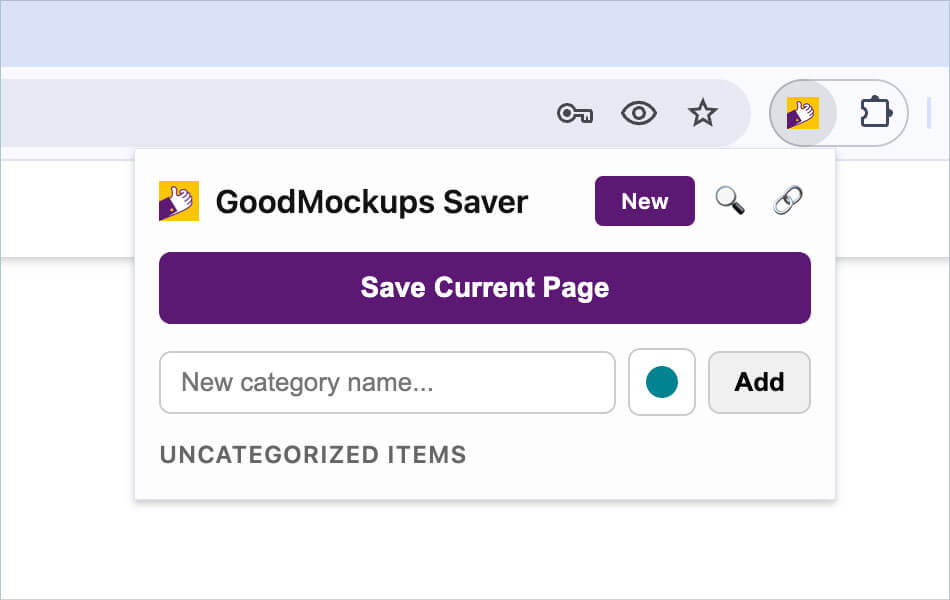
- Press the button “NEW” to check the website for new mockups.
- SAVE CURRENT PAGE is the largest button that you need to press when you are on your favorite mockup page. It will save the page and show it under uncategorized items. I visited this page (https://goodmockups.com/free-letterpressed-paper-logo-mockup-psd-set/).
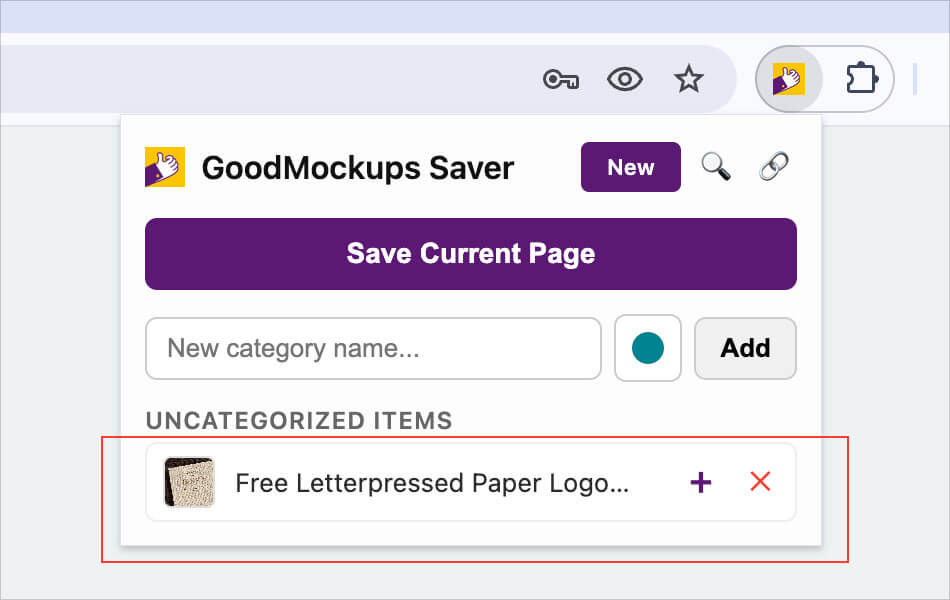
3. Now let’s categorize it. This is a logo mockup, and if you like some more logo mockups you can keep adding them and at the end we will make a category of “Logos” or ” My Fav Logo Mockups” and by using + sign you can add them one by one. Let me share how it looks. But first let me save some more mockup pages.
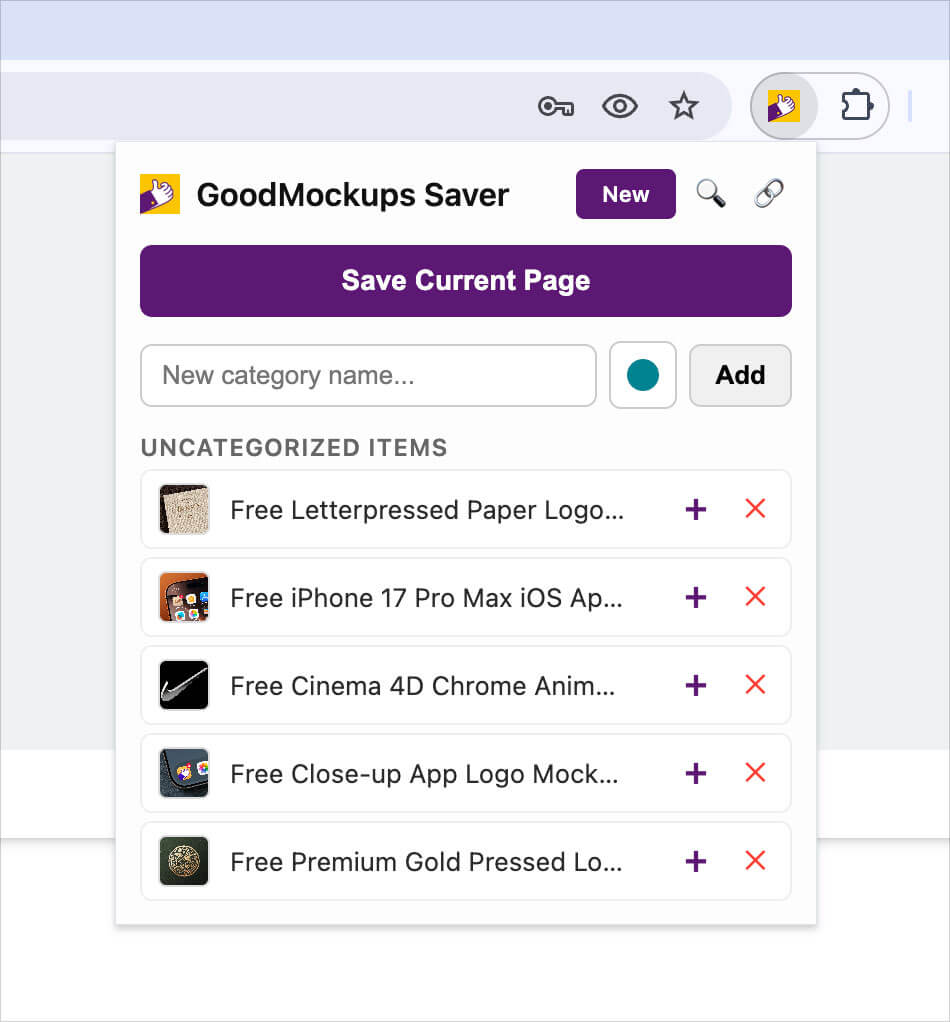
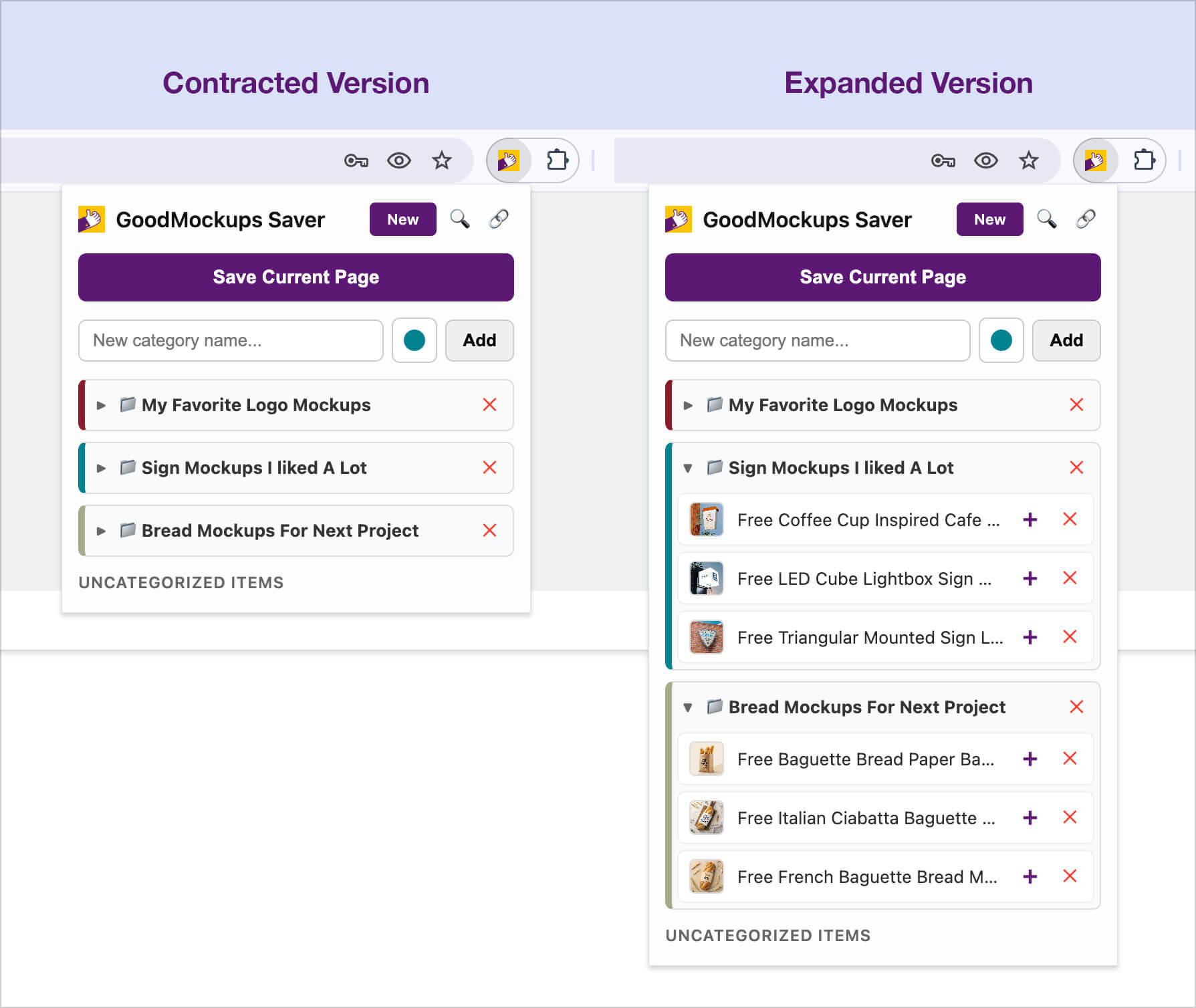
4. I added 5 more logo mockups that I like. Now you must be thinking that the list will become longer and longer. There is a perfect way to make it small, and that is the next step. Just go to the field that says (New Category name…) Type any keywords related to logos, such as my favourite logo list, my fav logos, logo mockups, logos. Let me write and press Enter. It will make a category where you can add all your mockups one by one. Once they are added, you can contract the list. Let me share an image for your reference.
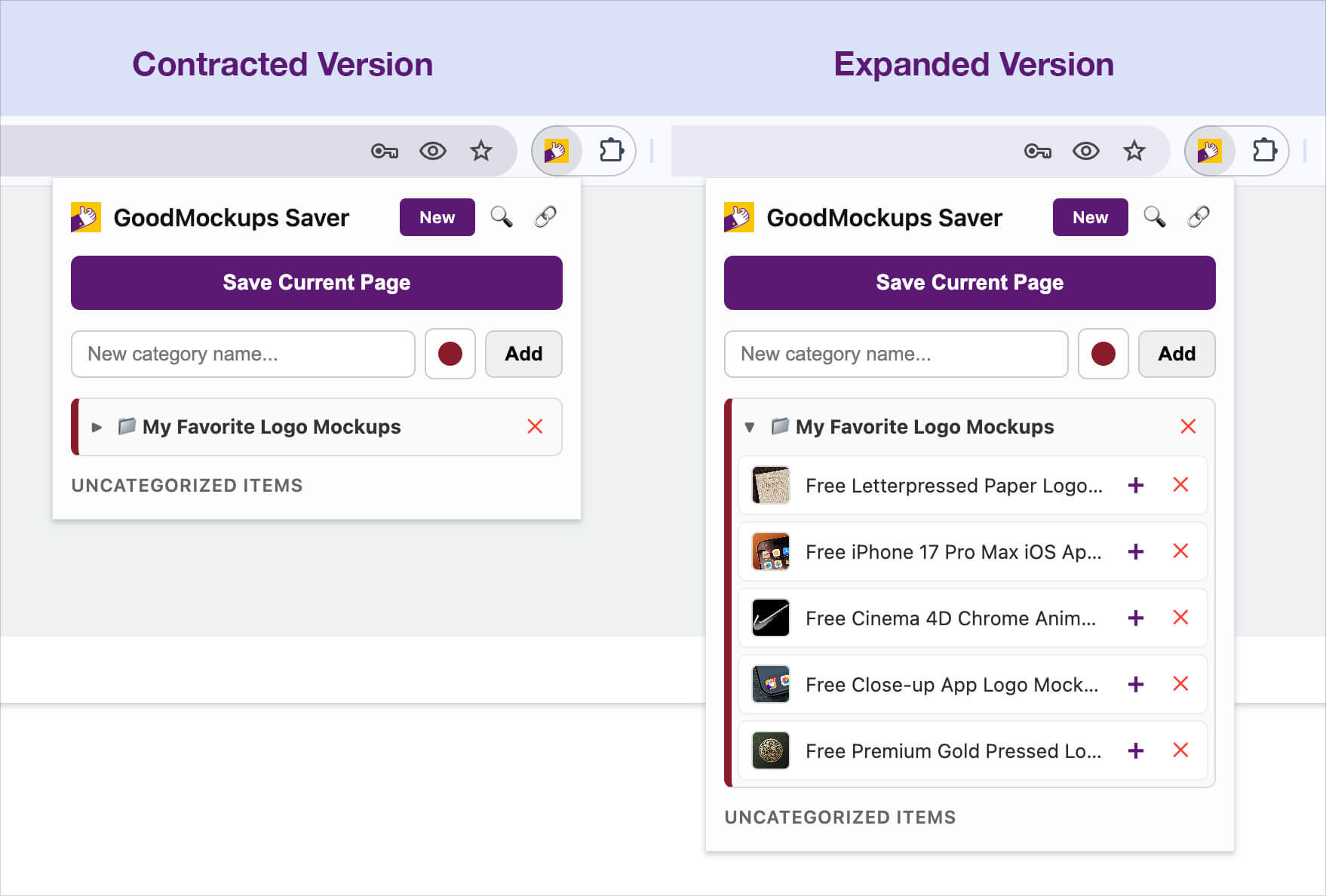
5. While making a category, I chose a color to differentiate between category groups. Let’s move forward and add a few more mockup pages and categories.
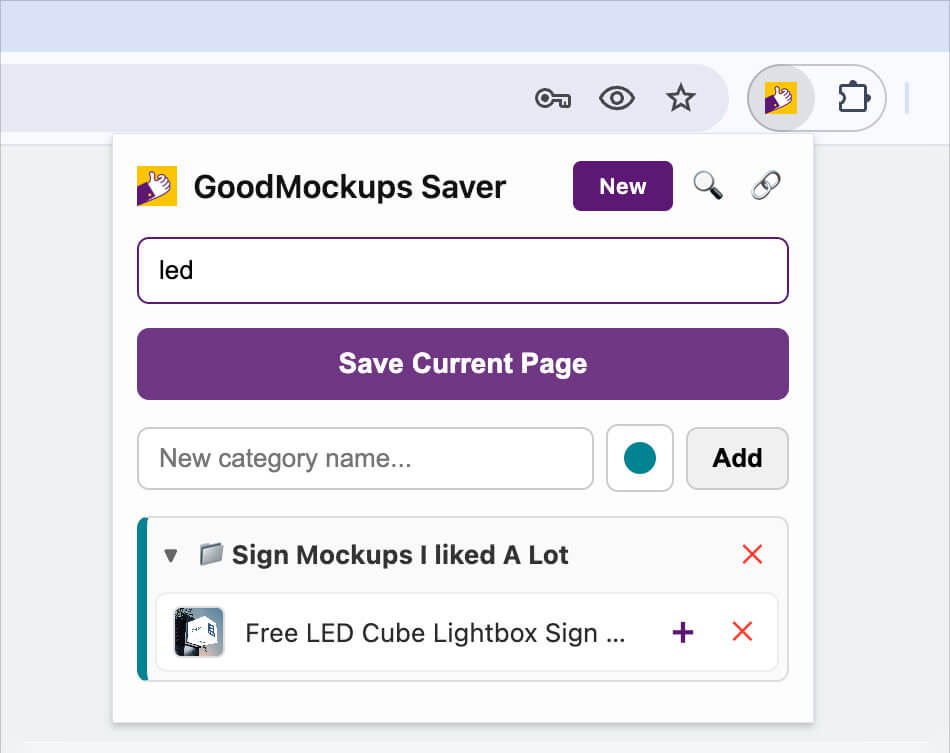
6. You can add as many pages as you like, but organize them with categories so it will become easier for you to find your mockup list. Suppose you have been adding many pages and now you have nearly 50 mockups in the list. You must be thinking, in all these mockups, how can I find a specific one, such as the word “LED”? There is a 🔍 icon on the top right side; you need to click on it, and it will bring up a field where you can type your query, such as “LED” and it will instantly show the mockup with LED. Let me share with you how it will look like. It only pulls the mockup up that has “LED”.
7. There is another icon on the top, which is a chain 🔗. If you like our extension and would like to share it with your pals, then that link button is for the exact purpose.
8. There is an “X” at the end of each group, and mockup link, just press it once, and it will delete the mockup or group. Once you delete the group, all the associated mockup links will remain there so you can recategorize them. This feature is developed so you won’t miss any link you saved.
Lastly, if you visit Goodmockups often and have a list of favourite mockups, then you should consider installing the Chrome extension. This way you will never miss the new mockups from our website, and if you like newer ones, you can just add them to your existing folders. If you only want them for a single project and are looking for mockups but do not want to download then just save them. When you are done with your design work and now you need mockups, then it is the best time to visit them from the extension. Just click on the mockup, and it will take you to the download page.
Bear in mind there are two types of mockups on our website. First one that we share from other mockup designers. Once you click on the download button, it will take you to the exit page where you need to wait till the link appears: “continue downloading mockup.” Click that link, and it will take you to the author’s page where the specific mockup is available. There will be a download button you need to press, and after a few second download will start. The second type of mockups are designed by us. These are instant downloads where you only need to click once, and the download will start instantly.
If you find any mockup that is not available anymore, then “report missing mockup“. We will update the link with the backup file till the author’s website is up or provide you with the direct link.
After using our extension, please give feedback on the extension page. We will be highly grateful and keep on providing the best quality mockups for free, and keep on creating free mockups of high quality.
Thanks for reading and downloading our official Chrome Extension.